Alight Motion for PC 2026: Download and Install on Windows & Mac
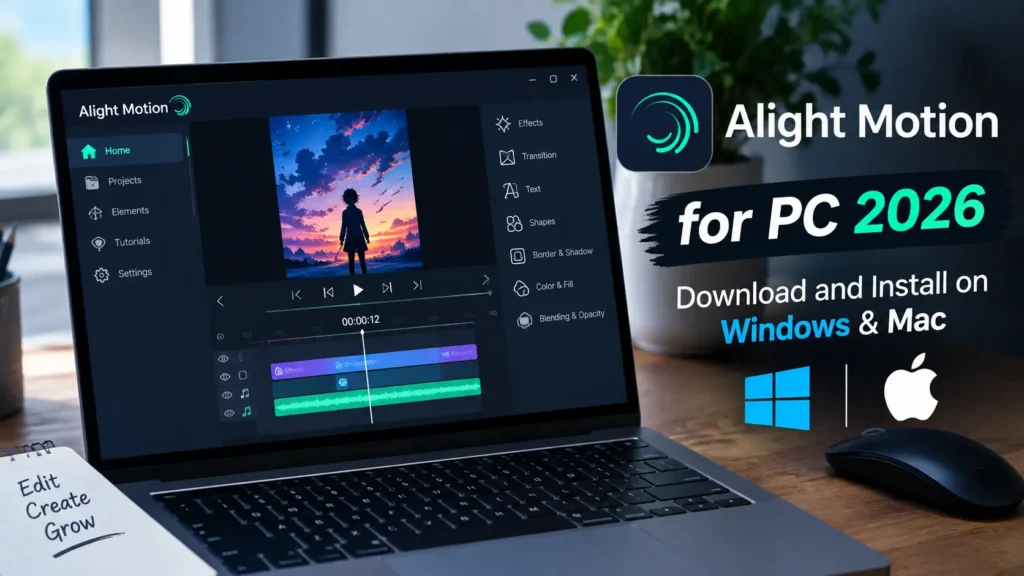
Want to use Alight Motion on a bigger screen? You may be able to run its Android app on a Windows computer using a compatible Android emulator. This setup can help you create motion graphics, animate text, edit layers, and work with media files using your computer.
However, Alight Motion does not officially support Windows or macOS as native desktop platforms. Using an Android emulator is a workaround, not an official PC version, and compatibility is not guaranteed.
In this guide, you will learn how the emulator method works, which system requirements to check, how to install the app from a legitimate source, and how to fix common problems. You will also find practical advice about project backups, video exports, and modified APK safety.
Can You Download Alight Motion for PC Officially?
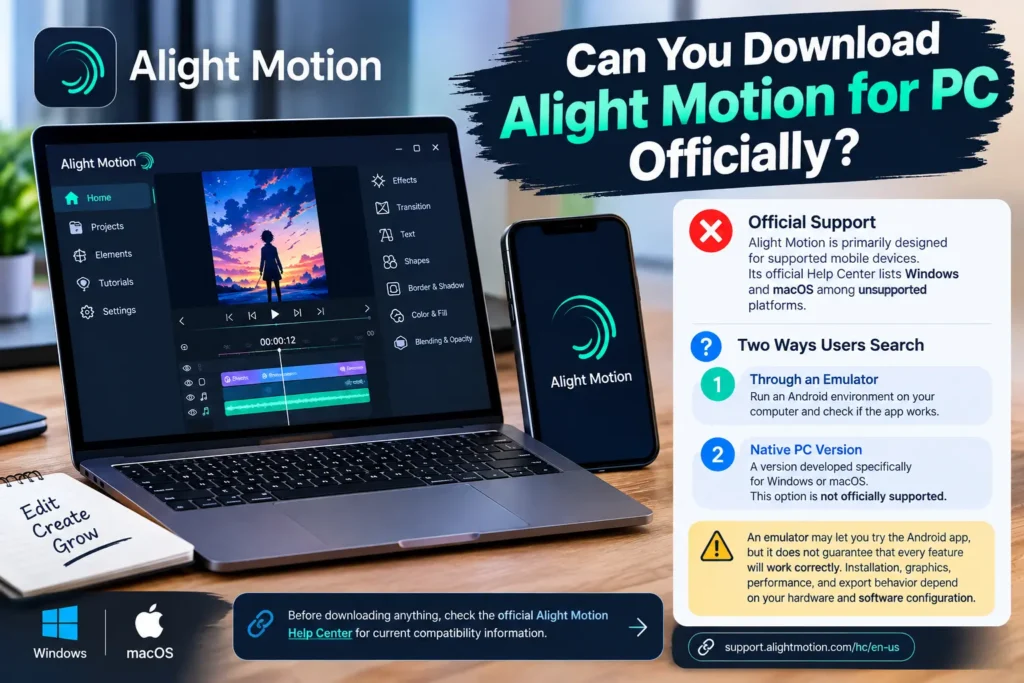
Alight Motion is primarily designed for supported mobile devices. Its official Help Center lists Windows and macOS among unsupported platforms.
There are two different things users may mean when searching for Alight Motion for PC:
- Alight Motion through an emulator: Running an Android environment on your computer and checking whether the app works in that environment.
- A native PC version: Installing software specifically developed for Windows or macOS. Alight Motion does not officially support this option.
An emulator may let you try the Android app, but it does not guarantee that every feature will work correctly. Installation, graphics, performance, and export behavior depend on your hardware and software configuration.
Before downloading anything, check the official Alight Motion Help Center for current compatibility information.
Alight Motion for PC System Requirements
your computer must meet the emulator’s requirements, and the app must also be compatible with the Android environment. Meeting minimum emulator requirements does not guarantee smooth video editing.
Minimum Requirements for BlueStacks
BlueStacks publishes these minimum requirements for BlueStacks 5:
| Component | Minimum requirement |
| Operating system | Windows 7 or newer, subject to version compatibility |
| Processor | Intel or AMD processor |
| RAM | 4 GB |
| Free storage | 5 GB |
| Graphics | Updated graphics drivers |
Source: BlueStacks 5 system requirements.
These are emulator requirements, not official Alight Motion PC requirements. BlueStacks recommends a newer Windows version, at least 8 GB RAM, an SSD, updated graphics lways check the requirements for the specific emulator version you plan to install.drivers, and enabled virtualization for a better experience.
Recommended PC Specifications
For a more comfortable emulator-based editing workflow, consider:
- A modern multi-core Intel or AMD processor.
- At least 8 GB RAM, with additional memory helpful for demanding projects.
- An SSD with sufficient free storage.
- Updated graphics drivers.
- A stable internet connection for downloads and online features.
Can You Run Alight Motion on a Low-End PC?
You may be able to start an emulator on a lower-specification computer, but complex projects can be slow.
Multiple video layers, effects, high-resolution media, and long timelines may require substantial processing power and memory. If your computer has only 4 GB RAM, close unnecessary applications and test a small project before editing a longer video.
Can You Use Alight Motion on Mac?
The official Help Center does not list macOS as a supported platform. If you want to try an Android emulator on a Mac, verify that the emulator supports your macOS version and processor architecture.
Intel-based Macs and Apple silicon Macs can have different compatibility requirements. Do not assume that an emulator designed for one configuration will work on another.
How to Download and Install Alight Motion on PC
The following instructions describe the emulator workaround on a compatible Windows computer. Availability and results can vary.
step1.Download an Android Emulator
Visit the official BlueStacks website and check whether the available version supports your computer.
Download the installer directly from the official website. Avoid third-party installer packages that bundle unknown applications or do not clearly identify their publisher.
step2.Install and Configure the Emulator
1.Open the downloaded installer.
2.Review the installation options and permissions.
3.Follow the on-screen instructions.
4.Wait for installation to finish.
5.Launch the emulator and complete its initial setup.
The exact process may differ between releases. If installation fails, consult the emulator’s official support documentation.
Step 3: Find Alight Motion Through an Official App Source
Open the available app store in the emulator, if supported, and search for Alight Motion.
Check the app publisher and listing details before installing. If the app is unavailable or marked incompatible, do not assume that an APK from an unknown website will resolve the issue.
The emulator’s Android version, device configuration, or app compatibility restrictions may be responsible.
Step 4: Install and Open the App
If the app is available and compatible, follow the app store’s installation instructions.
After installation, launch Alight Motion and check whether its interface loads correctly. If the app does not open, review the compatibility and troubleshooting information before making changes to your computer.
Step 5: Test a Small Editing Project
Before starting a large project, create a simple animation using a few layers and a text element.
Save the project and try exporting a short video. Confirm that the exported file can be opened on your computer and that the editing controls behave as expected.
Important: Successful emulator installation does not mean Alight Motion officially supports your computer.
Best Android Emulators to Consider
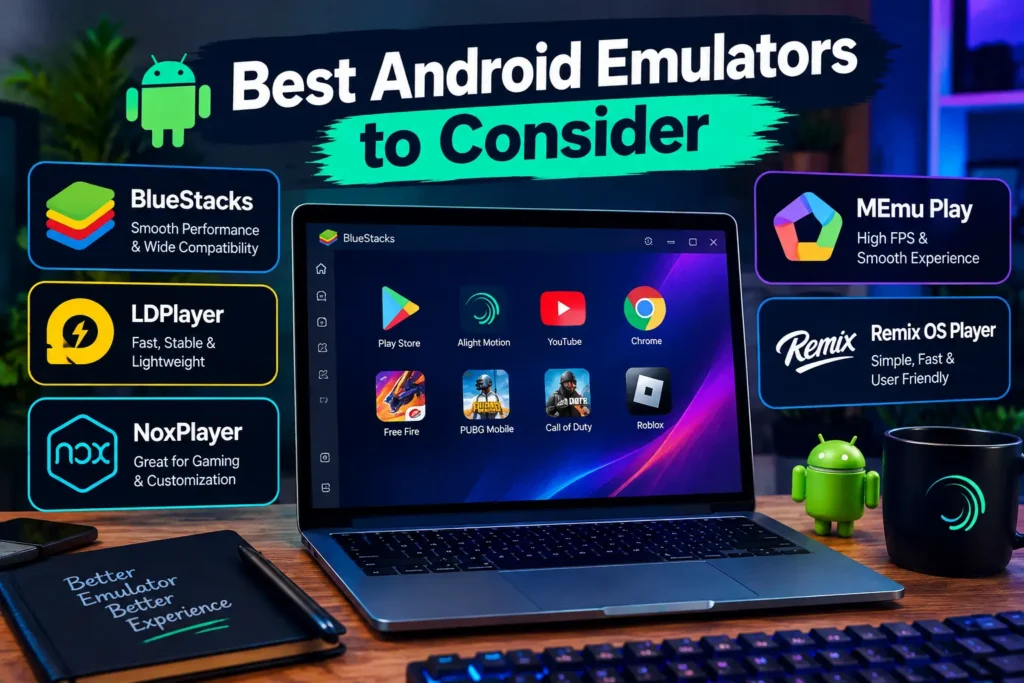
The best emulator depends on operating-system support, hardware, file-sharing options, and whether Alight Motion works in the selected Android environment.
BlueStacks
BlueStacks provides an Android app player and published installation documentation. It is one option to investigate on a compatible Windows computer.
Check its current requirements and test Alight Motion before using it for an important project.
Official website: BlueStacks
LDPlayer
LDPlayer is another Android emulator you may consider for Windows.
Visit its official website to check supported operating systems, installation requirements, and current software information.
Do not assume that switching emulators will automatically resolve app compatibility or performance problems.
How to Choose an Emulator
| What to check | Why it matters |
| Windows compatibility | The emulator must support your operating-system version |
| Android environment | Alight Motion needs a compatible environment |
| RAM and storage | Editing and exporting use system resources |
| Media access | Your source files must be accessible |
| Export functionality | The finished video must save correctly |
| Security and updates | Official installers reduce avoidable risks |
Choose an emulator only after checking these factors. Neither emulator is guaranteed to run every Alight Motion feature.
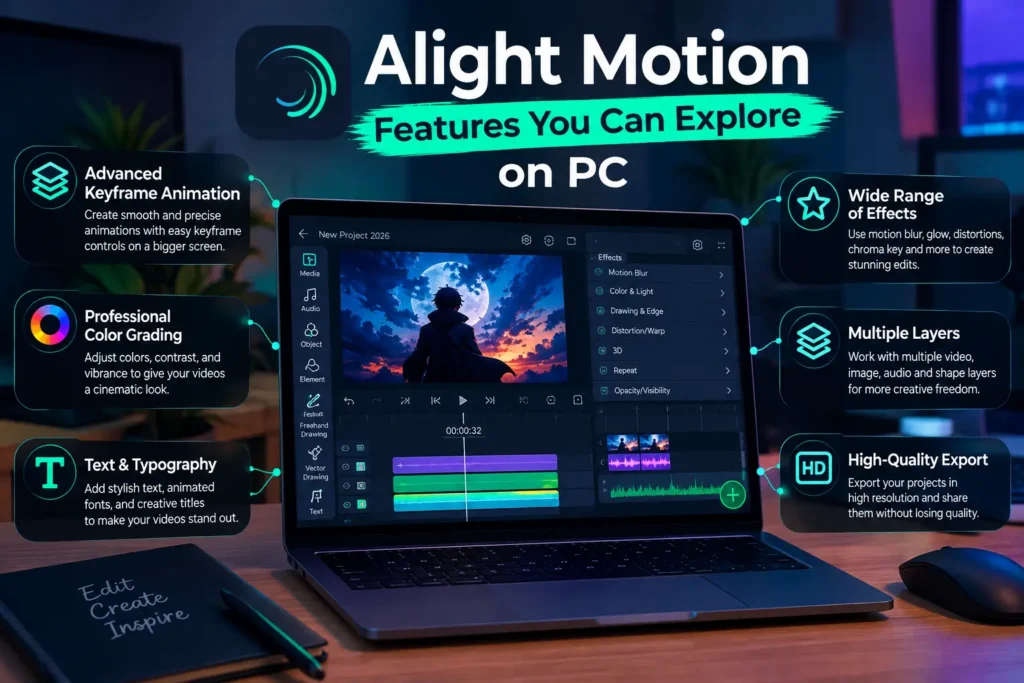
Alight Motion Features You Can Explore on PC
If Alight Motion works in your emulator, you can explore its available editing tools. The interface and performance may differ from a supported mobile device.
Keyframe Animation
Keyframes let you animate properties such as position, scale, rotation, and opacity over time.
For example, you can make a title move into the frame, increase in size, and fade out. The result depends on the timing and interpolation settings you choose.
Vector and Bitmap Graphics
Vector graphics can represent scalable shapes, while bitmap images are made from pixels. Both can be useful for logos, titles, overlays, and other visual elements.
Export quality also depends on the source files and your selected output settings.
Text Animation
Animated text can make intros, social-media videos, and short edits more engaging.
Experiment with position, scale, opacity, color, and other available properties. Font availability and rendering can vary by environment.
Blending and Masking
Blending modes combine visual layers, while masks control which portions of a layer remain visible.
These tools can help you create overlays, transitions, and more complex compositions.
Audio and Video Editing
Audio and video layers let you coordinate visuals with music, sound effects, and voiceovers.
Test trimming and synchronization with a short project before working with longer footage. Supported formats and export behavior may vary.
Visual Effects and Transitions
Alight Motion provides visual effects and animation tools, but the available options depend on the installed version and configuration.
Check the actual effects available in your app instead of relying on unverified claims about a fixed number of effects.
How to Import Media and Back Up Projects
Keeping your source files and projects organized is important, especially when working through an emulator.
Import Videos, Images, and Audio
Check whether your emulator supports shared folders, drag-and-drop, or another documented file-transfer method.
If files do not appear:
- Confirm that they were copied to a location the emulator can access.
- Check any required storage permissions.
- Verify that the media format is supported.
- Restart the app and try again.
The exact file-transfer process depends on your emulator.
Back Up Your Editing Projects
Do not assume that projects will remain available after reinstalling the app or clearing its data.
Alight Motion’s official Help Center explains how to use the Project Package feature to back up and transfer projects. Where available, open the project, select the export option, choose Project Package, and follow the app’s instructions.
Keep the generated link or QR code safe, and verify that you can retrieve the project before removing the existing installation.
Read the official project backup guide before moving or reinstalling the app.
How to Fix Common Alight Motion Problems on PC
Emulator-based editing can introduce compatibility issues. Start with basic checks before changing system settings.
🔧 Alight Motion Is Lagging
- Close unnecessary applications to free up RAM.
- Check for emulator and graphics-driver updates.
- Review the emulator’s recommended performance settings.
- Reduce the number of effects and video layers in a test project.
- Restart the emulator and try again.
If performance remains poor, consider using a more capable computer or a desktop editor designed for your operating system.
⚠️ The App Will Not Open
Check whether your emulator and Android environment meet the app’s compatibility requirements.
Restart the emulator and review available updates. If the app remains incompatible, consult official support instead of installing a modified version from an unknown source.
🖥️ Black Screen or Graphics Problems
Check for graphics-driver updates through your computer or graphics hardware manufacturer’s official website.
Review the emulator’s supported graphics settings and troubleshooting instructions. Change documented settings one at a time so you can identify the cause.
📁 Videos or Images Are Missing
Verify that your files are stored in a location the emulator can access. Check file permissions and try a supported media format.
If the files remain unavailable, follow the emulator’s documented file-transfer instructions.
🎬 Video Export Fails
Complex projects, high-resolution media, and resource-intensive effects can cause export problems.
Try lowering the resolution, frame rate, or bitrate. You can also simplify the project and try exporting from the project list when that option is available.
For more help, read the official export troubleshooting guide.
Is Alight Motion MOD APK for PC Safe?
A modified APK is an application package that has been altered from its original version. It is different from installing an app through an official store.
Some third-party websites advertise MOD APK files with unlocked premium features, no watermark, or no ads. These descriptions are not proof that the file contains those features or that it is safe.
Alight Motion’s official Help Center warns that unofficial versions may contain malware, prevent the app from working correctly, or put devices and projects at risk.
For a safer approach:
- Prefer legitimate app distribution channels.
- Avoid installers that request unrelated permissions or bundle unknown software.
- Do not enter account credentials into untrusted pages.
- Back up important projects before changing your installation.
- Check official subscription details for premium features.
Does Alight Motion for PC Remove the Watermark?
Using an emulator does not automatically remove a watermark. Watermark availability depends on the app version and applicable account or subscription features.
Do not treat a MOD APK’s watermark-free claim as a guarantee. Check the official app and subscription information before starting a project that requires a particular export result.
Can You Unlock Premium Features for Free?
There is no reliable guarantee that a modified APK will provide all premium features safely or consistently.
Use legitimate access options and review the current official subscription terms if you need premium functionality.
Frequently Asked Questions
Is Alight Motion Available for PC?
Alight Motion does not officially support Windows or macOS as native desktop platforms. You may be able to try its Android app through a compatible emulator, but this method is not officially supported.
Can I Use Alight Motion on Windows 11?
You can investigate using an Android emulator that supports Windows 11. However, successful emulator installation does not guarantee that Alight Motion will install or work correctly.
Can I Use Alight Motion on Mac?
The official Help Center does not list macOS as a supported platform. Compatibility depends on your Mac model, processor architecture, operating-system version, and the emulator’s current support.
Which Emulator Is Best for Alight Motion?
BlueStacks and LDPlayer are options to investigate on compatible Windows computers. Compare their current requirements and test the app before choosing one for your editing workflow.
Can I Use Alight Motion Offline on PC?
Offline use depends on the app, account requirements, and emulator environment. Some functions may work without an internet connection, while downloads and online features may require connectivity. Test the specific features you need.
Can I Import My Own Videos and Images?
This may be possible if the emulator supports access to your computer’s files and Alight Motion can read the media formats. Follow the emulator’s file-transfer instructions and test with a small file first.
Why Is Alight Motion Exporting Slowly?
Complex projects, high-resolution media, multiple effects, and limited system memory can increase export time. Try simplifying the project and reducing export settings.
Will My Projects Be Safe if I Reinstall the App?
Do not assume that projects will remain available after reinstalling. Back them up using the Project Package feature where available, and verify that you can retrieve them before removing the existing installation.
Final Verdict: Is Alight Motion on PC Worth Trying?
Alight Motion can be useful for motion graphics, animated text, layered compositions, and short video edits. If you prefer editing on a computer, an Android emulator may be worth testing, provided your hardware and software are compatible.